Getting to Your DDEV Projects Fast: Filesystem Navigation Tips


A recent post on Bluesky asked a common question: with dozens of DDEV projects, what is the fastest way to get to one? The current routine was to open Finder, dig three folders deep, drag the folder into an editor, and then run ddev start. Another post mentioned 52 projects and no idea which ones are running. Here are the techniques we use and that came up in the replies.
See What Is Running: ddev list
ddev list shows every project DDEV knows about, with its status, location, URL, and type. The underlined locations and URLs are terminal hyperlinks you can click.
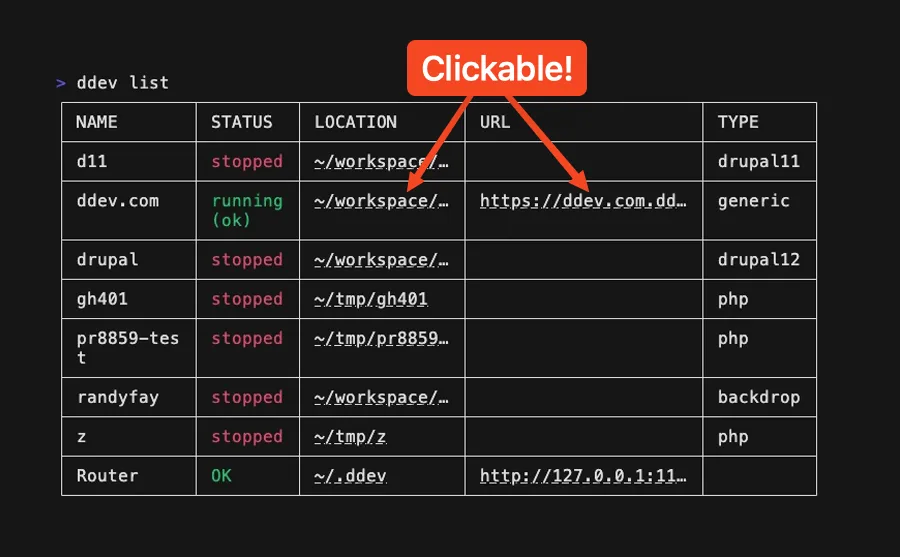
To see only the projects that are running, use ddev list --active-only (or ddev list -A). ddev poweroff stops every running project at once.
Clickable Links
Hold Cmd (macOS) or Ctrl (Linux and Windows) and click a link. A location opens in your file manager, and a URL opens in your browser.
DDEV adds links only in terminals it recognizes, including iTerm2, Ghostty, WezTerm, Kitty, Alacritty, Windows Terminal, VS Code’s integrated terminal, GNOME Terminal, and Konsole. The macOS Terminal app doesn’t support them, so on a Mac, iTerm2 is a good choice if you want clickable links or even if you just want to live a long and happy life.
If nothing is underlined:
- Upgrade DDEV. Links need v1.25.3 or later.
- Check that links are turned on in your terminal. Konsole has them off by default. To turn them on, enable “Allow escape sequences for links” under Settings > Edit Current Profile > Mouse > Miscellaneous.
- If you use tmux or screen, DDEV can’t detect your terminal. Add
export FORCE_HYPERLINK=1to your shell startup file to turn links on anyway.
The DDEV Dashboard: Just Type ddev
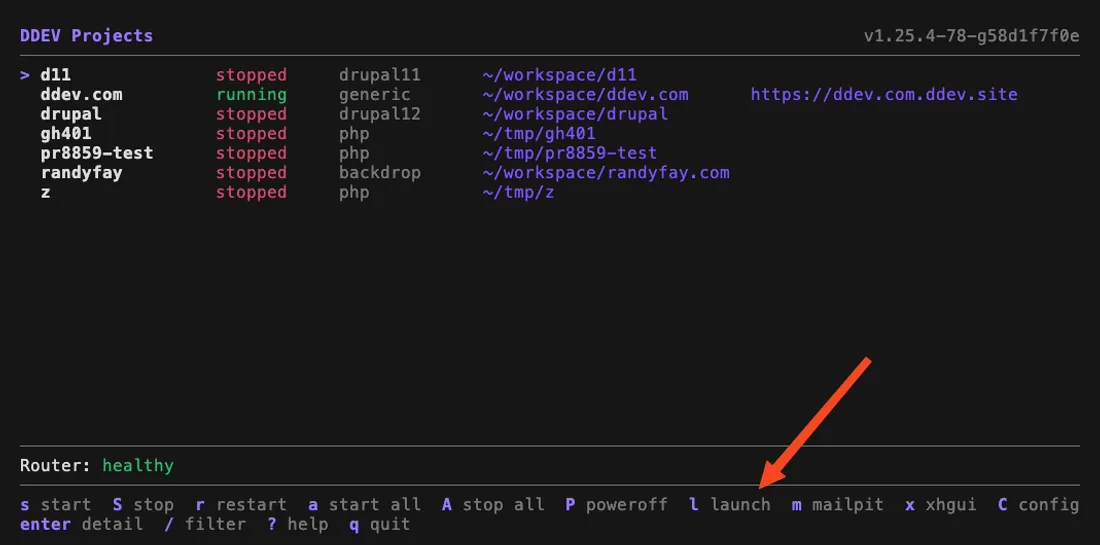
Running ddev or ddev tui with no arguments opens an interactive terminal dashboard that lists all of your projects and their status. You can start, stop, and restart projects, open a project’s URL or Mailpit in the browser, and press Enter for a project’s details. For someone with 52 projects, this may be the quickest way to see what is running.
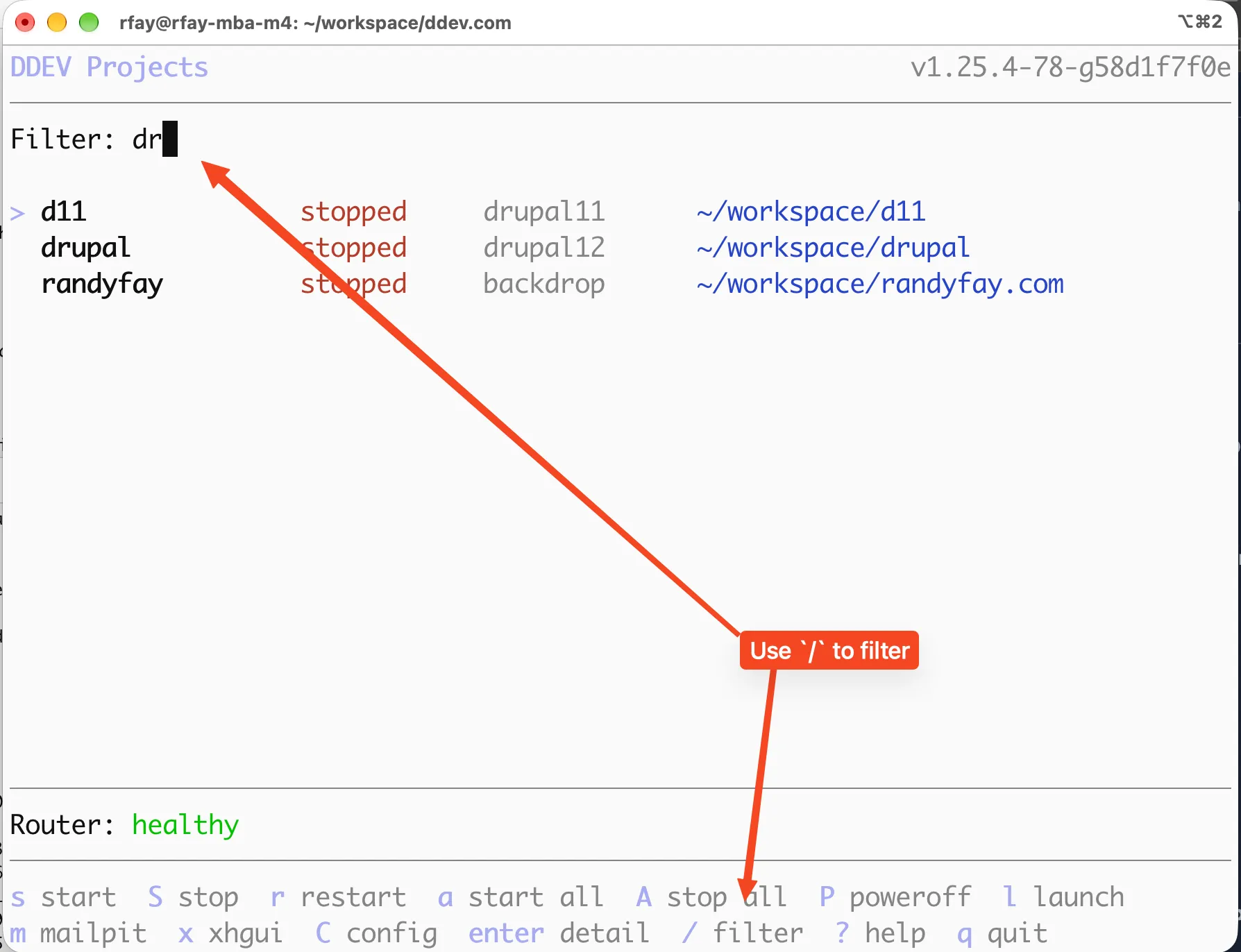
With many projects, the most useful key is /, which filters the list as you type. The filter matches part of a project’s name, type, status, or directory, ignoring case, so dr finds every Drupal project, running shows only running projects, and client finds every project under a client directory. Move to the project you want, and start it with s or open it with l. See the interactive dashboard documentation for the full list of keys.
ddevcd: Built-In Project Jump
DDEV ships a shell function that changes to a project’s root directory by name:
ddevcd some-projectIt needs a one-time addition to your shell startup file. ddev utility cd prints the exact line for Bash, Zsh, or fish. See the utility cd documentation.
ddevcd works from any directory, and it has tab completion for project names like the rest of DDEV. Typing ddevcd pr<tab> completes to something like ddevcd pr8859-test.
autojump: Jump by Partial Name
autojump learns the directories you visit and lets you jump to them with j and part of the name. It works for any directory, not only DDEV projects.
brew install autojump # Or `sudo apt install autojump`, etc
# Follow the post-install instructions to source it from your shell rc file
j myproject
ddev start
If you only need to start a project, you don’t have to change directories at all: ddev start <projectname> works from anywhere.
Note that autojump only knows directories you have already visited (unlike ddevcd, which knows every project DDEV has seen).
code . or phpstorm .: Open the Editor From the Project Directory
Once you are in the project directory, open it in your editor from the terminal.
For VS Code:
code .For PhpStorm:
phpstorm .Each command opens the current directory as the project, and reuses the window if that project is already open.
The commands have to be installed first:
- VS Code: Run “Shell Command: Install ‘code’ command in PATH” from the Command Palette.
- PhpStorm: Use Tools > Create Command-line Launcher in PhpStorm, or the shell scripts setting in JetBrains Toolbox. On macOS,
open -a PhpStorm .also works without a launcher script.
Other editors follow the same pattern, for example cursor . for Cursor.
Put it all together to get from anywhere to a running project in your editor:
ddevcd myproject && ddev start && code .ddevcd myproject && ddev start && phpstorm .Click the Link in ddev describe
ddev describe has a short alias, ddev st, which is easy to type and worth adopting. It prints the project’s details, including the project’s location on disk.
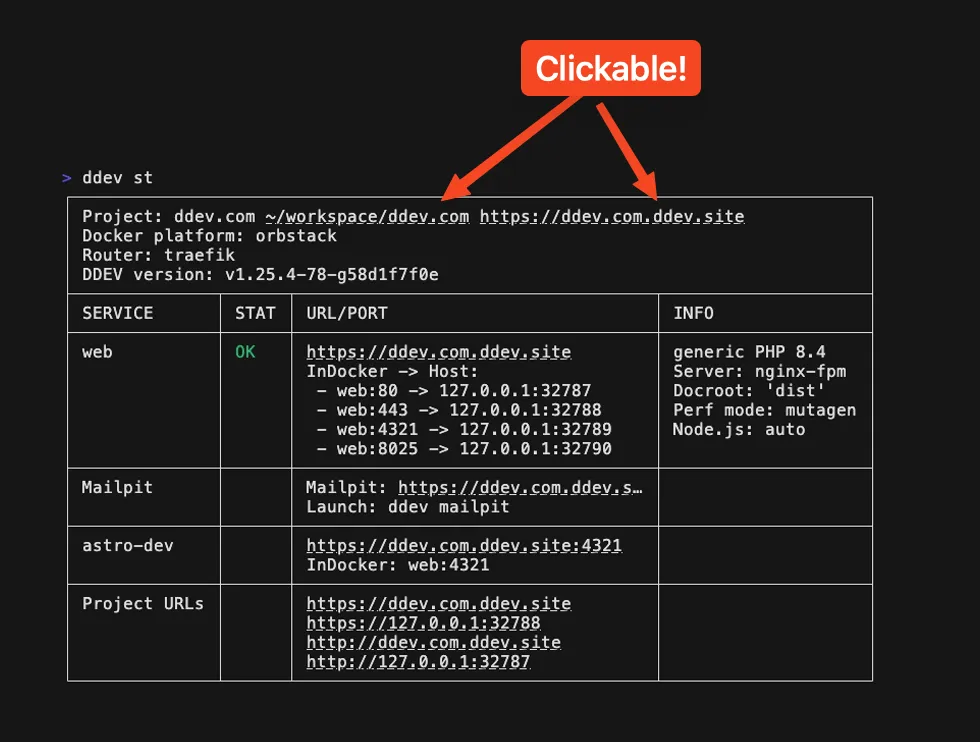
The project location (~/workspace/ddev.com in the header above) is a clickable link that opens your file manager at the project root.
Advanced: Answer Fancy Questions With ddev list -j and jq
ddev list -j prints the project list as JSON, and jq can answer more specific questions. The project data is under .raw. Each entry has fields including name, approot, status, type, and primary_url.
Running projects and their directories:
ddev list -j | jq -r '.raw[]
  | select(.status=="running")
  | "\(.name)\t\(.approot)"'
Names of all Drupal 11 projects:
ddev list -j | jq -r '.raw[]
  | select(.type=="drupal11")
  | .name'
The directory of one project, which you can use with cd or code:
code "$(ddev list -j | jq -r '.raw[]
  | select(.name=="myproject")
  | .approot')"
Community! Third-Party DDEV GUIs
If you would rather click than type, the community has built several graphical front ends for DDEV. They sit on top of the DDEV command line, so your projects and .ddev configuration stay the same. The DDEV project doesn’t maintain or endorse any of these, and this list comes from our newsletters and from reports by their authors. Try them and judge for yourself.
In Your IDE
- DDEV Integration plugin for PhpStorm and IntelliJ, maintained by AkibaAT.
- DDEV Manager extension for VS Code, by Biati Digital.
macOS
- DDrovr is a new native macOS app from Bison Digital that shows all your projects on one dashboard. It offers one-click access to URLs, terminal shells, and logs, detects the project’s CMS, highlights startup failures, and searches projects with Cmd-K. It needs macOS 14 or later and DDEV v1.24 or later, and works with OrbStack, Docker Desktop, and Colima. It is a download from the site, and the site lists no pricing or source repository.
- ddevbar is a menu bar app by Klemens Arro for starting, stopping, and restarting projects with a click.
- DDEVUI is a native app written in Swift and SwiftUI.
Cross-Platform
- ddev-ui is an Electron and React app for macOS, Windows, and Linux. It covers project management, database import and export, snapshots, add-ons, and log streaming.
- DDEV Manager GUI by VonLoxx is another desktop wrapper.
- DDEV GUI by ChaosKing has been tested only on Linux.
Commercial and Agency Tools
- DevWorkspacePro by damms005 is a commercial wrapper GUI. When we last looked it had no free trial.
Didn’t find yours? The June 2026 newsletter covers some of these tools as well. If you built a DDEV GUI, send a PR adding it here.
Tell Us What We Can Do To Make DDEV Better For You!
We know this is awkward territory, and we’re always listening to you, and want to know what we can do to make it better.
Contributions welcome!
Your suggestions to improve this blog are welcome. If you have a technique for getting around your projects that isn’t here, you can do a PR to this blog adding it. Info and a training session on how to do a PR to anything in ddev.com is at DDEV Website For Contributors.
Follow the DDEV Newsletter for information about upcoming user and contributor training sessions.