Contributor Training: `git worktree` for Multiple DDEV Projects

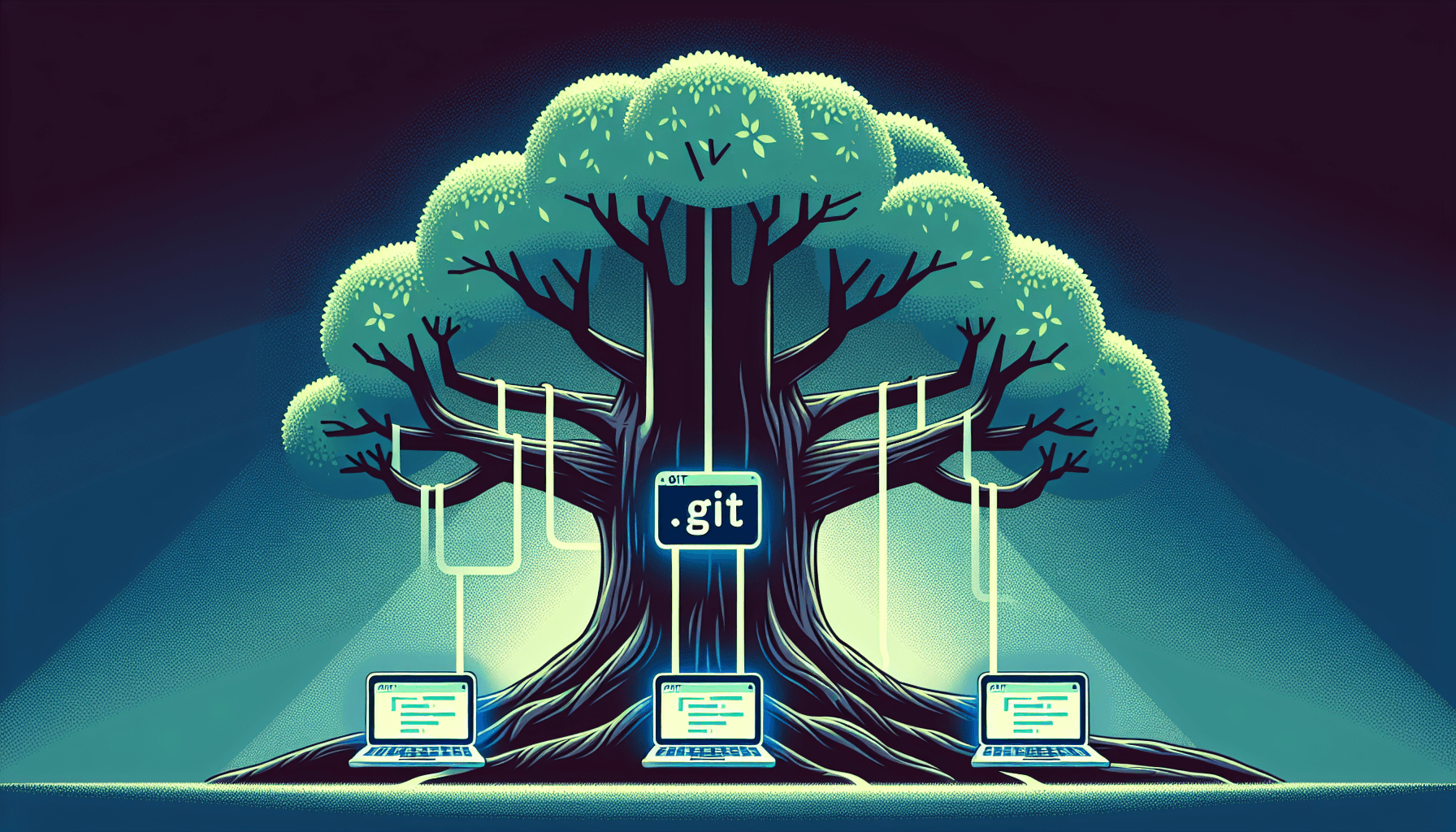
git worktree lets you check out multiple branches of the same repository into separate directories—all sharing one .git directory. Combined with DDEV, this gives you multiple running versions of the same project without duplicate clones.
There are many ways to use this, but some common patterns:
- Keep directories named after the branch they contain.
- Work on a hotfix and a feature branch without them interfering with each other.
- Set up Claude Code to work on two features at once in two distinct directories.
Here’s our March 26, 2026 Contributor Training on using git worktree with DDEV:
The slides are available at rfay.github.io/git-worktree-ddev.
See also the presentation at Florida Drupal Camp.
The Problem: Multiple Versions of a Project
When you need to work on several branches of a project simultaneously—say, a feature branch and a hotfix branch—the naive approach is to clone the repository twice:
git clone [email protected]:ddev/d11simple fancy-feature-1
git clone [email protected]:ddev/d11simple fancy-feature-2
This works, but each clone is a full redundant copy, and sharing objects or refs between them is awkward.
DDEV Project Names and Directories
By default, DDEV names a project after the directory it lives in. When you remove the name: key from .ddev/config.yaml, every checkout of a project gets the name of its parent directory automatically.
You can make this the global default:
ddev config global --omit-project-name-by-defaultWith that in place, fancy-feature-1/ becomes https://fancy-feature-1.ddev.site and fancy-feature-2/ becomes https://fancy-feature-2.ddev.site—no manual naming is required.
Using git worktree
git worktree solves the duplicate-clone problem. All worktrees share one .git directory:
# In ~/workspace/D11SIMPLE:
git clone [email protected]:ddev/d11simple
cd d11simple
git worktree add ../fancy-feature-1
git worktree add ../fancy-feature-2
Without a branch argument, git worktree add creates a new branch named after the directory. To check out an existing branch instead:
git worktree add ../fancy-feature-1 origin/fancy-feature-1The resulting layout:
D11SIMPLE/
├── d11simple          # primary clone (has .git/)
├── fancy-feature-1    # worktree checkout
└── fancy-feature-2    # worktree checkout
Setting Up the Database and Files
Export database and files from your primary project once, then import into each worktree:
# From ~/workspace/D11SIMPLE — create a shared tarball directory
mkdir .tarballs

# Export from the primary clone
cd d11simple
ddev export-db --file=../.tarballs/db.sql.gz
# Adjust the path below for your CMS; web/sites/default/files is Drupal
tar -C web/sites/default/files -czf ../.tarballs/files.tgz .

# Import into a worktree
cd ../fancy-feature-1
ddev start
ddev import-db --file=../.tarballs/db.sql.gz
ddev import-files --source=../.tarballs/files.tgz
Key git worktree Commands
git worktree add <path>     # Usually a relative path
git worktree list           # Show all worktrees
git worktree remove <name>  # Remove a worktree
Summary
- Remove
name:from.ddev/config.yamlso each worktree uses its directory name as the project name - Consider
ddev config global --omit-project-name-by-defaultto make this behavior the default for all projects git worktree add <path>creates a new checkout sharing the same.git- Import a database snapshot and files tarball into each worktree
- Each worktree gets its own DDEV project URL automatically
- If you’re using TYPO3, see Using
git worktreewith TYPO3—TYPO3’s absolutebaseURL needs apost-starthook to work across worktrees
Join us for future trainings
- Sign up for the DDEV Newsletter to be informed about future trainings.
- Let us know your tips and tricks in Discord or here in the comments.
Claude Code was used to draft and review this blog.