Introducing coder.ddev.com: DDEV in the Cloud

What is coder.ddev.com?
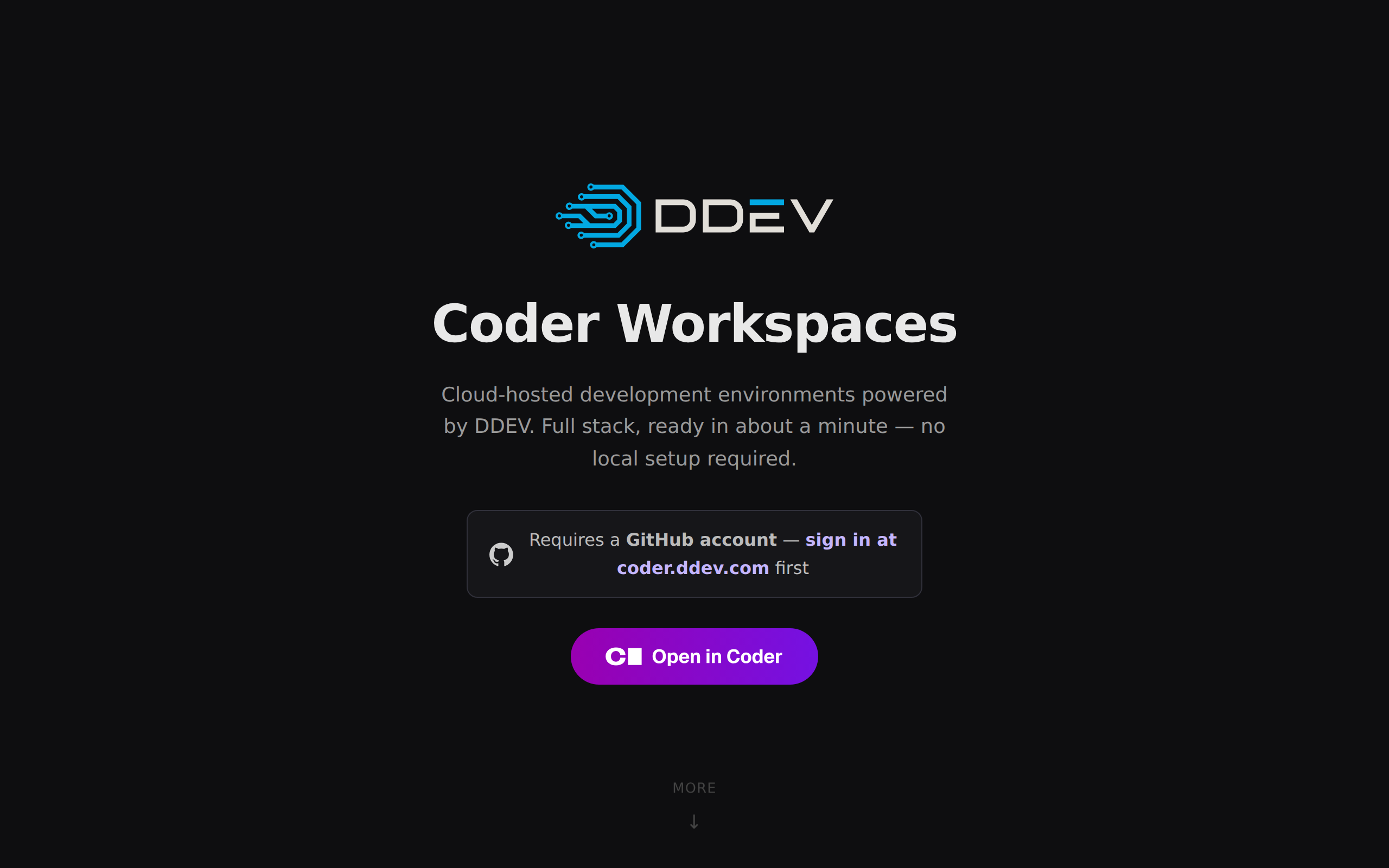
coder.ddev.com is a free, experimental cloud DDEV service. You log in with GitHub, create a workspace, and get a full DDEV environment in the cloud — no local Docker, no local installation needed.
Experimental Service
This is an experimental service with no guarantees of data retention, uptime, or long-term availability. The future of its maintenance and sustainability is uncertain. Do not store irreplaceable work here without pushing it to Git. Treat it as a convenience, not a platform to depend on.
Want a quick overview? This video walks through creating a workspace and using the freeform template for basic site setup:
Table of Contents
- How It Works
- Getting Started
- Template Overview
- The Drupal Issue Picker
- Development Tools
- Accessing Your Project
- Stopping and Deleting Workspaces
- FAQ
- Thanks to Coder.com
- What’s Next
- Getting Help
How It Works
coder.ddev.com runs on Coder, an open-source platform for remote development environments. Each workspace is an isolated container (using the Sysbox runtime for secure Docker-in-Docker) with DDEV, Docker, and VS Code pre-installed.
Your files persist on a remote volume across workspace restarts. When you delete a workspace, the data is gone — so push your work to Git before deleting. But until you delete the workspace, or it’s garbage-collected (not yet implemented), your work persists..
The source code for the templates and Docker image is at github.com/ddev/coder-ddev. Other projects can use this and deploy their own fully-DDEV-capable Coder instances.
Getting Started
1. Log In with GitHub
Access to coder.ddev.com requires a GitHub account and membership in an approved GitHub organization. Sign in using the Sign in with GitHub button — no separate Coder account registration is needed. coder.ddev.com receives read-only access to your email addresses, public profile, and GitHub organization membership — no code access, no write access.
Who has access:
- Members of the ddev GitHub organization
- Members of organizations that sponsor DDEV at $100+/month (see the DDEV sponsor page — all members of a qualifying sponsor org can sign in without individual enrollment
- Individuals approved by the DDEV maintainers
If you are a ddev org member or your organization is a $100+/month sponsor, you can sign in immediately — no request needed.
Requesting Access
If you do not have access through one of the paths above, open an issue in the coder-ddev-com/access-requests repository. Include your GitHub username and a brief description of how you plan to use the environment. The DDEV maintainers review requests and add approved users to the coder-ddev-com GitHub organization — once added, you can sign in immediately.
2. Create a Workspace
From the dashboard, click Create Workspace and choose a template:
- drupal-core — automated Drupal core development environment
- drupal-contrib — Drupal contrib module/theme development environment
- freeform — DDEV with Traefik routing integration for stable URLs
Give your workspace a name and click Create Workspace. The drupal-core and drupal-contrib templates take several minutes on first creation; subsequent starts are much faster.
3. Access Your Workspace
Once running, you have several options to use your workspace:
- Web Browser: From
coder.ddev.com, use the many options, including web-based terminal, VS Code for Web, and VS Code Desktop. - SSH with
coderCLI: Install the Coder CLI, thencoder login https://coder.ddev.comandcoder ssh <workspace-name>.
Template Overview
drupal-core
The drupal-core template sets up a complete Drupal core contribution environment automatically using the amateescu/ddev-drupal-dev DDEV add-on. Drupal core is cloned directly as the project root (no composer project wrapper), Composer dependencies are installed, and a demo site is installed.
Choose your Drupal version when creating the workspace:
- main (12.x / HEAD) — latest development (default)
- 11.x — current stable branch
- 10.x — previous stable branch
The template automatically selects the correct PHP version and DDEV project type for the chosen branch.
Log in to the site with admin / admin.
drupal-contrib
The drupal-contrib template sets up a development environment for any Drupal contrib module or theme using the ddev-drupal-contrib add-on.
Specify the project machine name when creating the workspace (e.g. token, views, webform). Drupal core is installed as a dev dependency, and your module or theme is symlinked into the web root automatically via ddev symlink-project.
Choose your Drupal version (10, 11, or 12) and optionally provide an issue number and branch to have the issue fork checked out automatically.
Dev tools available inside the workspace:
ddev phpunit— run PHPUnit testsddev phpcs/ddev phpcbf— check/fix Drupal coding standardsddev phpstan— static analysisddev eslint/ddev stylelint— JavaScript and CSS linting
Setup time is reasonable on first workspace creation and much faster on subsequent starts.
Key parameters:
| Parameter | Notes |
|---|---|
project_name | Drupal.org machine name, e.g. token (required) |
project_type | module or theme |
drupal_version | 10, 11, or 12 |
issue_fork | Issue number; omit for plain HEAD development |
issue_branch | Branch name; omit to use the default branch |
freeform
The freeform template supports multiple DDEV projects in one workspace, each accessible via its own subdomain through ddev-router Host-header routing — no port numbers needed. After creating a workspace, run ddev coder-setup once in your project directory, then ddev start. Routing updates automatically on every start.
The Drupal Issue Picker
One of the most useful features for Drupal contributors is the Drupal Issue Picker at start.coder.ddev.com/drupal-issue.
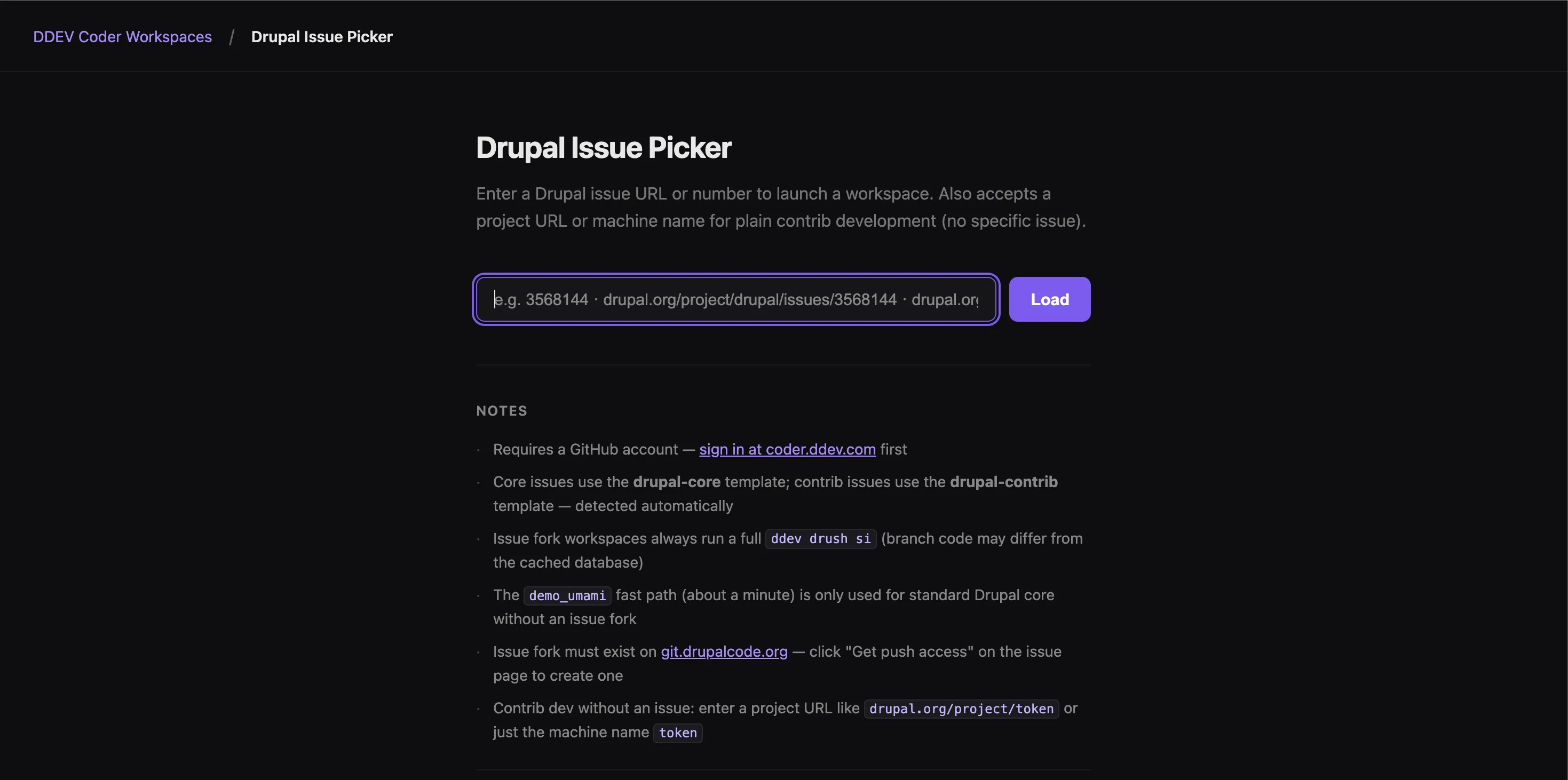
The picker accepts drupal.org issue URLs for both core and contrib projects and routes automatically to the right template:
- Core issues (e.g. Deprecate update.compare functions) → drupal-core template, with the correct Drupal version detected and the issue fork branch checked out
- Contrib issues (e.g. Better PHP Standards) → drupal-contrib template, with the module cloned and the issue fork branch checked out
The picker also accepts a project URL (e.g. drupal.org/project/token) or machine name (e.g. token) for plain contrib development without a specific issue — it opens the drupal-contrib template with the project at HEAD.
This replaces the workflow that DrupalPod (Gitpod-based) provided for contribution days. You can hand someone an issue URL, they paste it into the picker, and they have a working environment with the issue branch ready.
Development Tools
VS Code Web
“VS Code Web” runs in the browser and supports most extensions. You can install extensions from the marketplace, configure settings, and use the integrated terminal — all without installing anything locally.
VS Code Desktop
Clicking on “VS Code Desktop” opens up your local installation of VS Code and then automatically uses the Remote-SSH extension to connect to your Coder workspace. It’s nice, I used it a lot in preparing this blog and even in some recent work on Coder.ddev.com itself. All VS Code features work.
Xdebug
Xdebug works in Coder workspaces the same way as local DDEV with the DDEV VS Code Extension.
Coder CLI
The Coder CLI provides SSH access, port forwarding, file transfer, and workspace management. It’s a completely different way of interacting with your workspace. Install with brew install coder or other options.
# Login
coder login https://coder.ddev.com

# List workspaces
coder list

# SSH into workspace
coder ssh my-workspace

# Forward a port locally
coder port-forward my-workspace --tcp 8080:80

# Stop workspace (preserves data)
coder stop my-workspace
Accessing Your Project
Because DDEV runs inside a cloud container, the usual *.ddev.site URLs don’t work. Instead, access your project via the DDEV Web app link in the Coder dashboard, or use port forwarding, and ddev start, ddev launch and ddev describe also give URL information.
The freeform template handles this automatically with Traefik routing — you get stable subdomain URLs like https://<workspace>--<workspace>--<owner>.coder.ddev.com/.
Stopping and Deleting Workspaces
Stop: Stops the container and frees compute resources. All files in /home/coder are preserved. Use this when you are done for the day.
Delete: Permanently removes the workspace and all data. Always push your code to Git before deleting.
This can also be done from the command-line on your local machine (after coder login https://coder.ddev.com):
coder list
coder stop my-workspace   # Stop (data preserved)
coder delete my-workspace # Delete (data lost permanently)
FAQ
- How do I pull/push to GitHub/GitLab/Drupalcode? (or use SSH)?
Use the coder publickey command to get the publickey associated with your coder.ddev.com projects (it’s the same for all projects). You can then add that to GitHub/GitLab/Drupalcode/Remote SSH to allow you to access those resources.
- How do I set this up myself for my own initiative?
The full details are in the repository at github.com/ddev/coder-ddev.
- Where is this running?
This is running on a 64GB Hetzner bare-metal Ubuntu 24.04 machine in Helsinki, Finland. It has lots of disk and costs about $50/month.
Thanks to Coder.com
The world of open source is amazing. Coder.com is a shockingly mature project, and so many of these things worked just great out of the box.
What’s Next
The templates and image are open source at github.com/ddev/coder-ddev. Contributions, bug reports, and feature requests are welcome.
Getting Help
- Documentation: github.com/ddev/coder-ddev/docs
- DDEV Discord: Discord —
#support-and-discussionchannel - Issues: github.com/ddev/coder-ddev/issues
- DDEV Docs: docs.ddev.com
- Coder.com: coder.com or github.com/coder/coder