Markdown Features Demo: Testing All Formatting Options

This demonstration post showcases all the Markdown formatting features available for blog posts on ddev.com. It’s designed for testing the rendering of various Markdown elements.
Blog Posts Are Markdown, Not MDX
Some standalone site pages (like Contact and Foundation) are written in MDX and can import Astro components. Blog posts are different: they’re loaded from plain .md files only, so MDX syntax and component imports aren’t available here. Stick to the Markdown and directive syntax demonstrated in this post.
Table of Contents
- Callout Boxes
- Callout with Multiple Paragraphs and Formatting
- GitHub Flavored Markdown Features
- Standard Markdown Blockquotes
- Code Blocks
- Links
- Lists
- Typography Examples
- Tables
- Nested Content Examples
- Images and Figures
- Video Embeds
- Featured Sponsors
- Mermaid Diagrams
- Complex Combinations
- Conclusion
Callout Boxes
Note/Info Callout
Did you know?
DDEV uses Docker containers to provide isolated development environments. This allows you to run multiple projects with different PHP versions, database engines, and configurations without conflicts.
You can also use :::info[] for the same blue-themed styling:
Quick Reference
Use ddev describe to see all your project’s URLs, database credentials, and other configuration details in one place.
Tip Callout
Pro Tip
Use ddev describe to see all your project’s URLs and credentials.
Here’s a tip without a custom title:
Run ddev logs to troubleshoot issues with your project. Add -f to follow logs in real-time, or -s db to see database logs specifically.
Warning Callout
Important
Make sure to commit your work before running destructive commands.
Another warning example:
This command will delete your database. Make a backup first with ddev snapshot or ddev export-db > backup.sql.gz!
Danger Callout
Breaking Change (hypothetical example)
Imagine a future release removes support for a legacy configuration format, requiring you to migrate your .ddev/config.yaml file. That’s the kind of announcement this callout style is meant for.
Critical warning example:
Running this script in production will cause downtime. Always test destructive operations in a development environment first.
Callout with Multiple Paragraphs and Formatting
Complex Content Example
This callout demonstrates that you can include multiple paragraphs and various formatting options within a single callout box.
You can use bold text to emphasize important points, italics for subtle emphasis, and inline code for commands or configuration values.
You can also include links to other resources and even lists:
- First item with important information
- Second item with related details
- Third item with additional context
GitHub Flavored Markdown Features
The site supports GitHub Flavored Markdown (GFM) which adds several useful features:
Autolinks
URLs automatically become clickable links:
- https://ddev.com
- https://docs.ddev.com
- [email protected] (email addresses too!)
Strikethrough
You can strike through text using double tildes. This is useful for showing deprecated features or corrections.
Example: DDEV v1.0 required manual configuration DDEV now auto-detects project types.
Emoji Support
Emojis are automatically made accessible for screen readers:
- 🚀 DDEV is fast and powerful
- ✅ Tests passing
- ⚠️ Warning message
- 💡 Helpful tip
- 🎉 Celebrate your success!
Footnotes
GFM footnotes are also supported. Docker Desktop isn’t the only container runtime DDEV works with1, and DDEV detects which one you have automatically2.
Footnote definitions can be written anywhere in the document - they’re automatically collected into a numbered “Footnotes” section at the very end of the rendered page, each with a back-link to its reference.
Standard Markdown Blockquotes
For simpler callouts that don’t need full styling, you can use standard Markdown blockquotes:
Note: This is a simple note using blockquote syntax.
Tip: Use
ddev sshto open a shell inside your web container.
Update: DDEV v1.25.0 includes support for Docker Compose v2 by default.
Code Blocks
Bash Commands
ddev start
ddev composer install
ddev npm install
Multi-line Bash with Comments
# Start your DDEV project
ddev start

# Import a database
ddev import-db --file=backup.sql.gz

# Run Composer commands
ddev composer require drupal/admin_toolbar
PHP Code
<?php

namespace Drupal\my_module\Controller;

use Drupal\Core\Controller\ControllerBase;

class MyController extends ControllerBase {
  public function content() {
    return [
      '#type' => 'markup',
      '#markup' => $this->t('Hello DDEV!'),
    ];
  }
}
JavaScript
const config = {
  host: "localhost",
  port: 3000,
  environment: "development",
}

function initializeApp() {
  console.log("Starting DDEV-powered app...")
  return config
}
YAML Configuration
name: my-project
type: php
docroot: web
php_version: "8.3"
database:
  type: mysql
  version: "8.0"
nodejs_version: "20"
JSON
{
  "name": "my-ddev-project",
  "version": "1.0.0",
  "scripts": {
    "dev": "ddev npm run dev",
    "build": "ddev npm run build"
  }
}
Links
Links Between Blog Posts
Internal blog links use filename references: Learn about DDEV performance
Links to Other Site Pages
Root-relative links: Visit our sponsor page
External Links
External links automatically open in a new tab with security attributes: DDEV Documentation
Reference-style links for cleaner Markdown:
Check out the Docker documentation and the Astro guide for more information.
External Link Behavior
All external links (links to domains other than ddev.com) automatically get target="_blank" and rel="noopener noreferrer" attributes for security and usability. You don’t need to add these manually.
Lists
Unordered Lists
- First item
- Second item with bold text
- Third item with
inline code- Nested item one
- Nested item two
- Deeply nested item
Ordered Lists
- Start your DDEV project
- Configure your application
- Import your database
- Test your site
- Check the homepage
- Test user login
- Verify email functionality
Task Lists
- Install DDEV
- Create new project
- Configure add-ons
- Deploy to production
Typography Examples
Emphasis
This text has italic emphasis and this has italic emphasis too.
This text has bold emphasis and this has bold emphasis too.
You can combine bold and italic or italic and bold.
Inline Code
Use ddev start to start your project, ddev stop to stop it, and ddev restart to restart.
Strikethrough
This feature is deprecated Use the new feature instead.
Horizontal Rules
You can use horizontal rules to separate sections:
Content after the horizontal rule.
Tables
| Command | Description | Example |
|---|---|---|
ddev start | Start project containers | ddev start |
ddev stop | Stop project containers | ddev stop |
ddev restart | Restart project containers | ddev restart |
ddev ssh | SSH into web container | ddev ssh |
Alignment in tables:
| Left Aligned | Center Aligned | Right Aligned |
|---|---|---|
| Item 1 | Item 2 | Item 3 |
| A | B | C |
Nested Content Examples
Callout with Code Block
Running Commands Inside Containers
You can execute commands inside your DDEV containers using ddev exec:
# Run PHP commands
ddev exec php -v

# Run Composer
ddev exec composer require vendor/package

# Or use the shorthand
ddev composer require vendor/package
This is especially useful for debugging or running one-off commands.
List with Callouts
Here’s a workflow with embedded callouts:
-
Start your project
ddev start -
Configure your database
⚠️ WarningMake sure to snapshot your database before making changes:
ddev snapshot -
Import your content
ddev import-db --file=backup.sql.gz -
Verify everything works
💡 TipUse
ddev launchto open your site in a browser automatically.
Images and Figures
Images are automatically wrapped in semantic <figure> elements with captions generated from alt text. Click any image to open it fullscreen.
The alt text becomes the figure caption, improving both accessibility and visual presentation:
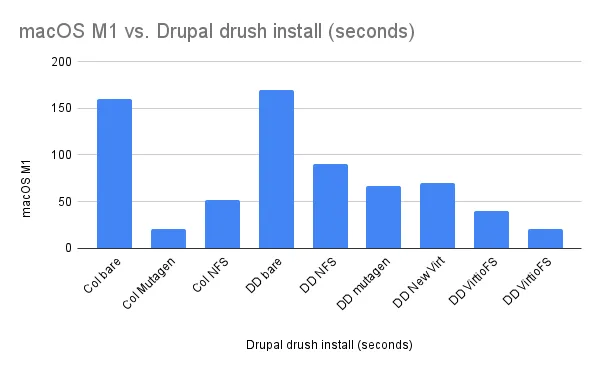

Image Best Practices
- Always include descriptive alt text (becomes the caption)
- Keep images under 1-2MB
- Use appropriate formats: JPEG for photos, PNG for screenshots, SVG for logos
- Optimize with tools like ImageOptim before committing
Video Embeds
Videos should be wrapped in a .video-container div for responsive sizing:
Featured Sponsors

Mermaid Diagrams
Mermaid diagrams are rendered as static SVGs - no client-side JavaScript. To add a diagram:
- Write the diagram source using Mermaid syntax
- Paste it into mermaid.live, set the Config
themeto"default"(light) or"dark" - Use the “Opens diagram in mermaid.ink” link to download the SVG
- Save both variants to
public/img/blog/YYYY/MM/

Store the diagram source in a custom frontmatter key (any name works) so it can be regenerated later. HTML comments cannot be used because --> arrows in the syntax close the comment prematurely.
# Diagram source for my-diagram.svg (light) and my-diagram-dark.svg (dark).
# To regenerate: paste into https://mermaid.live/, set Config theme to "default" (light) or "dark",
# then use the "Opens diagram in mermaid.ink" link to download the SVG.
diagramSource: |
  flowchart TD
      A[Start] --> B[Process]
      B --> C{Done?}
      C -->|Yes| D[End]
      C -->|No| A
To display both variants, use two <img> tags with Tailwind’s dark: classes. The .dark class on <html> drives the switch, so the site’s theme toggle works correctly - not just the OS preference:
<img
  class="dark:hidden"
  src="/img/blog/2026/02/my-diagram.svg"
  alt="Diagram description"
/>
<img
  class="hidden dark:block"
  src="/img/blog/2026/02/my-diagram-dark.svg"
  alt="Diagram description"
/>
Fix SVG width for the lightbox
mermaid.live exports SVGs with width="100%", which causes the PhotoSwipe lightbox to display them very small - img.naturalWidth returns 0 for percentage-width SVGs, so PhotoSwipe falls back to a default 1200×800 box that dwarfs the actual content.
Fix: open the SVG file and replace width="100%" with explicit pixel dimensions from the viewBox. For example, viewBox="0 0 489.53125 1107.4375" becomes:
<svg width="490" height="1108" ... viewBox="0 0 489.53125 1107.4375" ...></svg>Keep the existing style="max-width: ..." attribute - it preserves the responsive display on the page. Do this for both the light and dark SVG variants.
The Using WarpBuild to speed up DDEV in CI post stores its diagram source in frontmatter.
Complex Combinations
Production Deployment Checklist
Before deploying to production, verify:
-
Environment Configuration
# Check environment variables ddev exec printenv -
Database Backup
Always create a backup before deployment!
-
Run Tests
ddev exec phpunit ddev exec npm test -
Build Assets
- Compile CSS and JavaScript
- Optimize images
- Clear caches
For more information, see the README or ask in DDEV Discord.
Conclusion
This demo post covers all the major Markdown features available for blog posts on ddev.com. Each section demonstrates different formatting capabilities that can be used when writing actual blog content.
Remember to check the MARKDOWN_FORMATTING.md guide for the latest syntax and examples.
Footnotes
-
See Docker installation for supported providers like Colima, OrbStack, Rancher Desktop, and Lima. ↩
-
Detection happens at
ddev starttime; no manual configuration is required. ↩